
Set up MakerOps in 30 minutes
A hands-on walkthrough of the core workflow: a person takes a training, earns a credential, and is cleared on a machine.
- For
- The person setting up the space
- Requires
- Admin role (you have it if you created the space)
- Available on
- Web, plus the mobile app for the last steps
Updated
This walkthrough builds the one workflow everything in MakerOps hangs on:
Person → Training → Credential → Machine
You’ll need about 30 minutes , a computer, and a phone with the MakerOps app (iOS or Android). You’ll also need a second email address for a test member.
1. Create your space (5 minutes)
Sign up at app.makerops.ai/signup and confirm your email. In the setup wizard:
- Your space: pick the kind of space you run.
- Equipment: tick at least one kind of equipment, such as Laser & Beam. This creates machine types for you.
- Staffing & trainings: tick We run trainings or certifications for machine access.
- Sample data: leave it off for this walkthrough, so you can see what you’ve built.
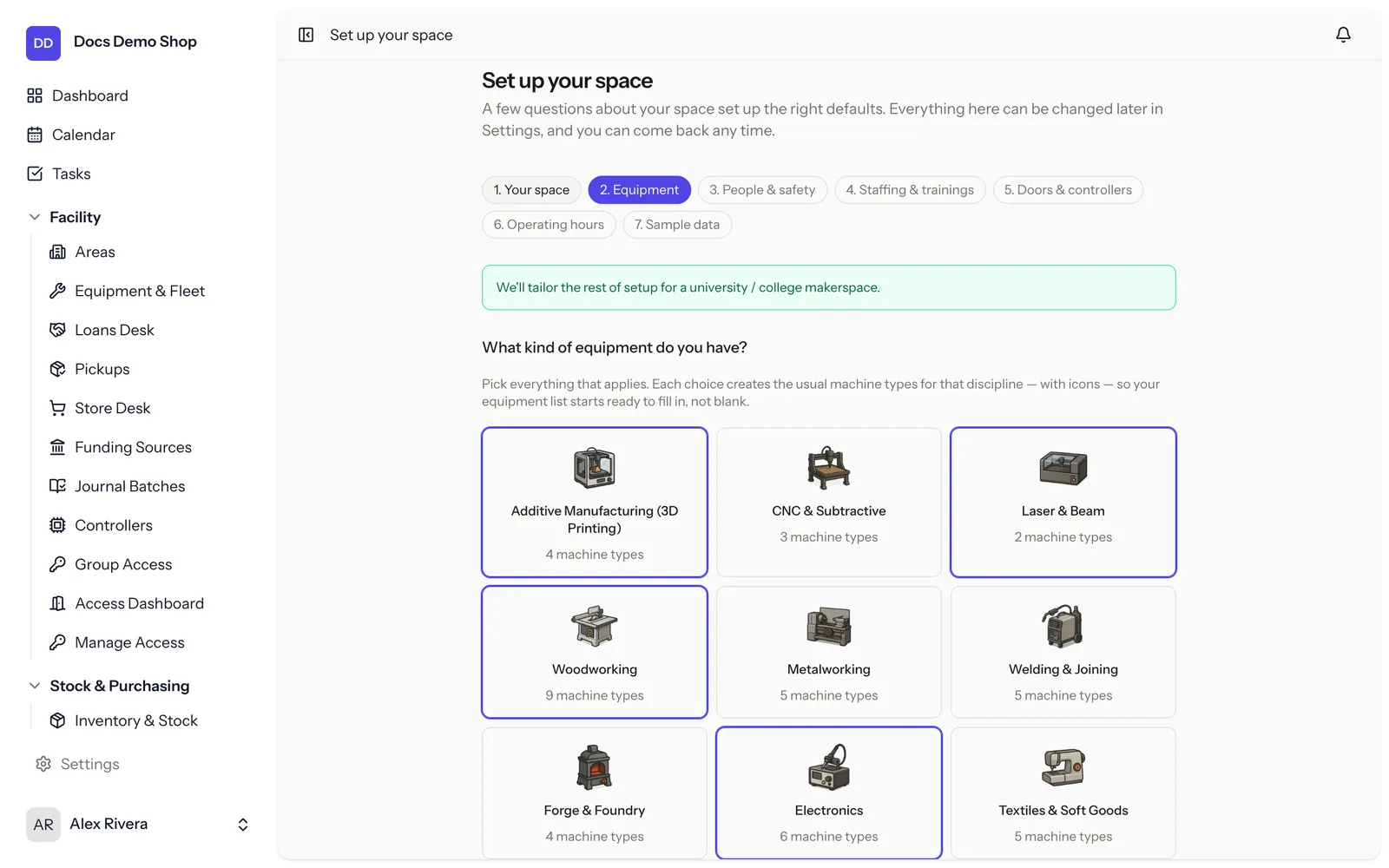
Skip anything else for now and click Finish & go to dashboard.
2. Add a machine (3 minutes)
- Open Facility › Equipment & Fleet and click New Equipment.
- Name it, for example “Laser Cutter 1”, and pick a Machine type the wizard created.
- Click Create Equipment.
3. Create a credential (2 minutes)
- Open Learning › Training Catalog, then the Credentials tab.
- Click New Credential, name it “Laser Safety”, and click Create Credential.
4. Build a short training (10 minutes)
- On the Trainings tab, click New Training. Name it “Laser Safety Basics”, keep the type Self-paced, and under Grants credentials pick “Laser Safety”. Click Create Training.
- Open the row’s ⋯ menu and choose Open training editor.
- Add two Slides with a few safety rules, and one Question, such as “What do you do if the material catches fire?”
- Go back to Trainings, edit the training, set Status to Active, and click Save Changes.
5. Require the credential on the machine (1 minute)
Open “Laser Cutter 1”, click Edit, add “Laser Safety” under Required credentials, and click Save Changes.
6. Invite a test member (2 minutes)
Open People › Members & Groups, click Invite Member, enter your second email address, leave the Role as Staff, and click Send Invitation.
7. Take the training as that member (5 minutes)
Accept the invitation from the second address and choose a password. It’s easiest in the MakerOps app, which signs you in as you accept. Open the Training tab, tap “Laser Safety Basics”, tap Start training and finish it.
8. Check the result (2 minutes)
Back in your admin account, open the test member’s page in Members & Groups, and go to the Training tab. “Laser Safety” is listed under Credentials. Nobody entered it by hand.
If you have a MakerOps controller on the laser, the test member can now scan its QR code and start the machine. Without a controller, the machine’s page shows staff who is cleared.
You’ve built the core of MakerOps
The member took a training, the training awarded a credential, and the machine trusts the credential. Everything else in MakerOps builds on that chain: expiry dates, prerequisites, reservations, controllers.
Where to go next
- Running a university makerspace: put a waiver and orientation in entry requirements, then set up student staff shifts.
- Running a community makerspace: roles, loans and events.
- Running a shop: maintenance schedules and inventory.
- Installing controllers: start with Installation & wiring.