
Equipment & maintenance
Add machine types, models and machines, set service status, schedule maintenance, handle problem reports, and print QR labels.
- For
- Staff and administrators
- Module
- Equipment
- Available on
- Web; problem reports, QR scans, service status, maintenance logging and fleet sweeps also in the mobile app
Updated
You can list your machines, group them by machine type and model, schedule their maintenance and follow up on the problems people report.
How equipment is organized
- A machine type describes a kind of machine, such as “FDM 3D Printer” or “Laser cutter”.
- A model is one specific make and model inside a machine type, such as “Prusa Core One”. Models sit directly under a machine type, and nothing sits under a model, so there are two levels at most.
- A machine is one physical unit, with its own name, area, serial number, asset tag and status. It belongs to a machine type or a model, or to neither.
- Maintenance schedules, manuals and a picture set on a machine type or model reach every machine in it. A machine type’s also reach the machines of its models.
- A fleet is all the machines of one machine type or model. Fleet Maintenance shows them together, so “service all twelve Prusas” is one view. Switch between Equipment and Fleet Maintenance at the top of the Facility › Equipment & Fleet page.
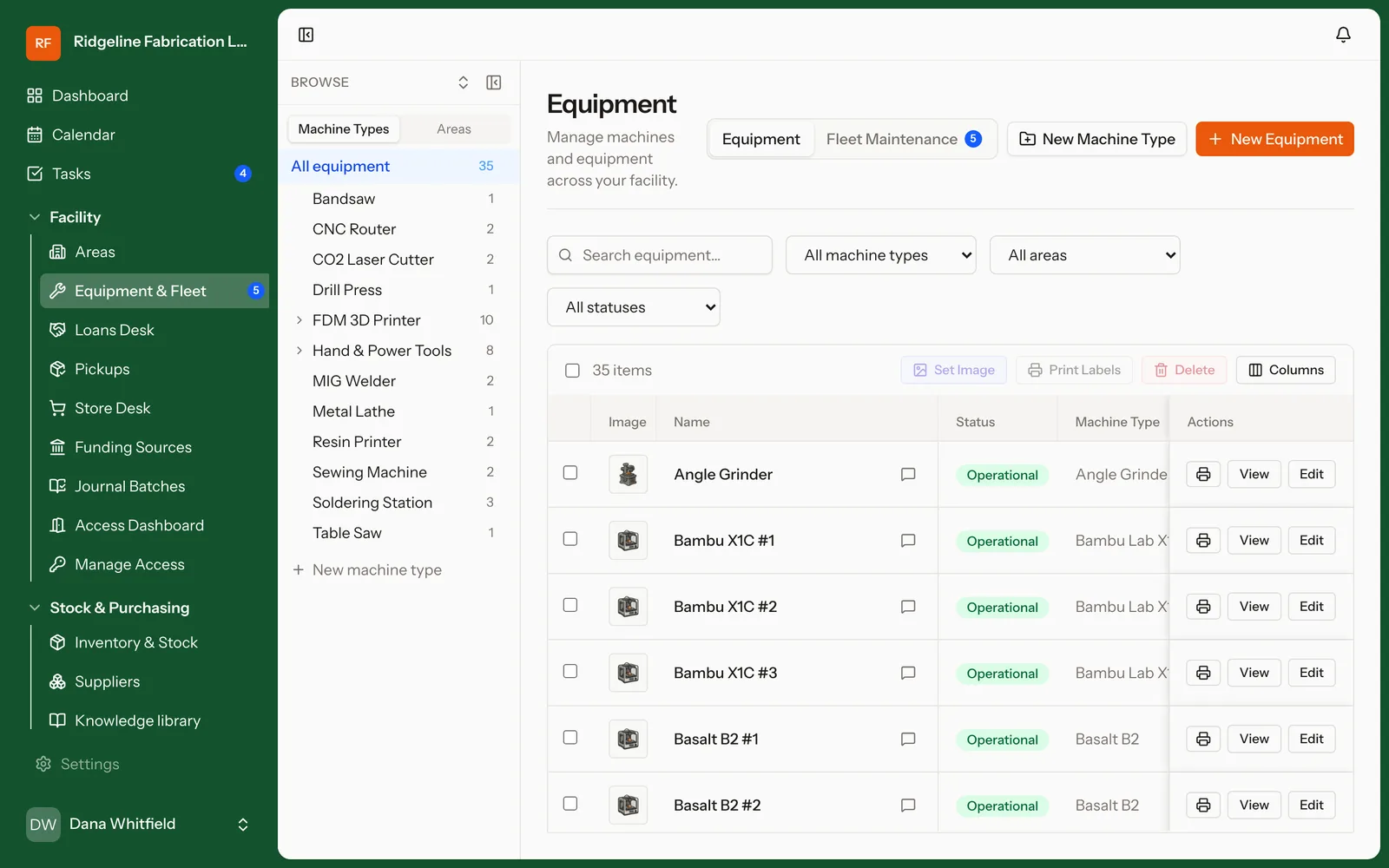
Add a machine type
- Open Settings › Machine Types and click New Machine Type.
- Enter a Name, and optionally an Icon, Hazard class and Description.
- Set the Access type if you want one: Standard access, Assisted access or Staff use only.
- Click Create.
To add a model, click Model on its machine type’s row, or pick the machine type under Sits under. A model also takes a Manufacturer and Model number.
The Equipment page has a New Machine Type button too. It asks for a Name, the machine type it sits Inside (for a model) and a Picture, then click Create group.
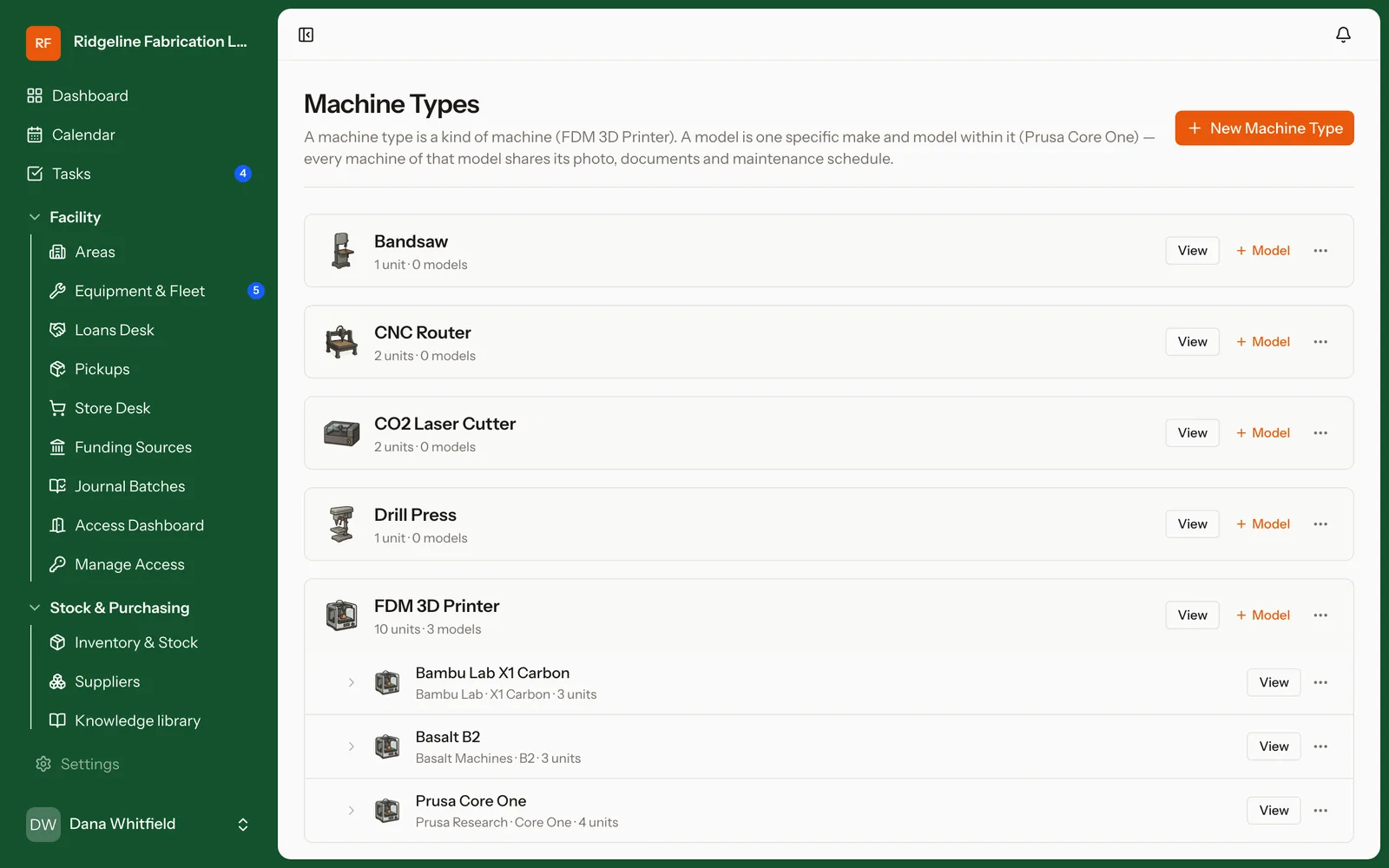
Needs the Manage equipment types permission. If you answered the Equipment step of the setup wizard, common types already exist.
Add a machine
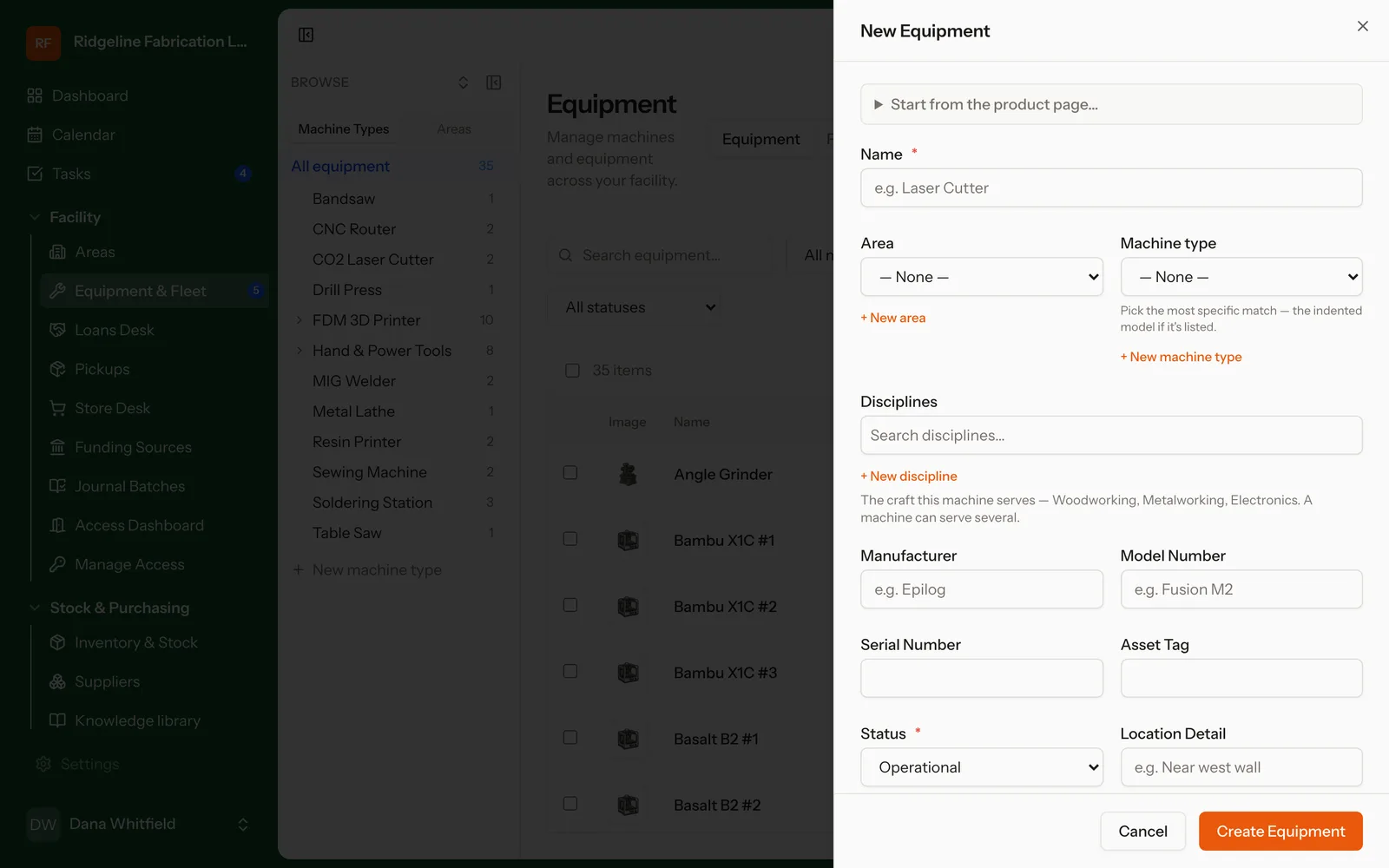
- Open Facility › Equipment & Fleet and click New Equipment.
- Enter a Name, choose its Area and Machine type, and fill in what you know: serial number, asset tag, location, image.
- Click Create Equipment.
Needs the Add equipment permission.
Require training for a machine
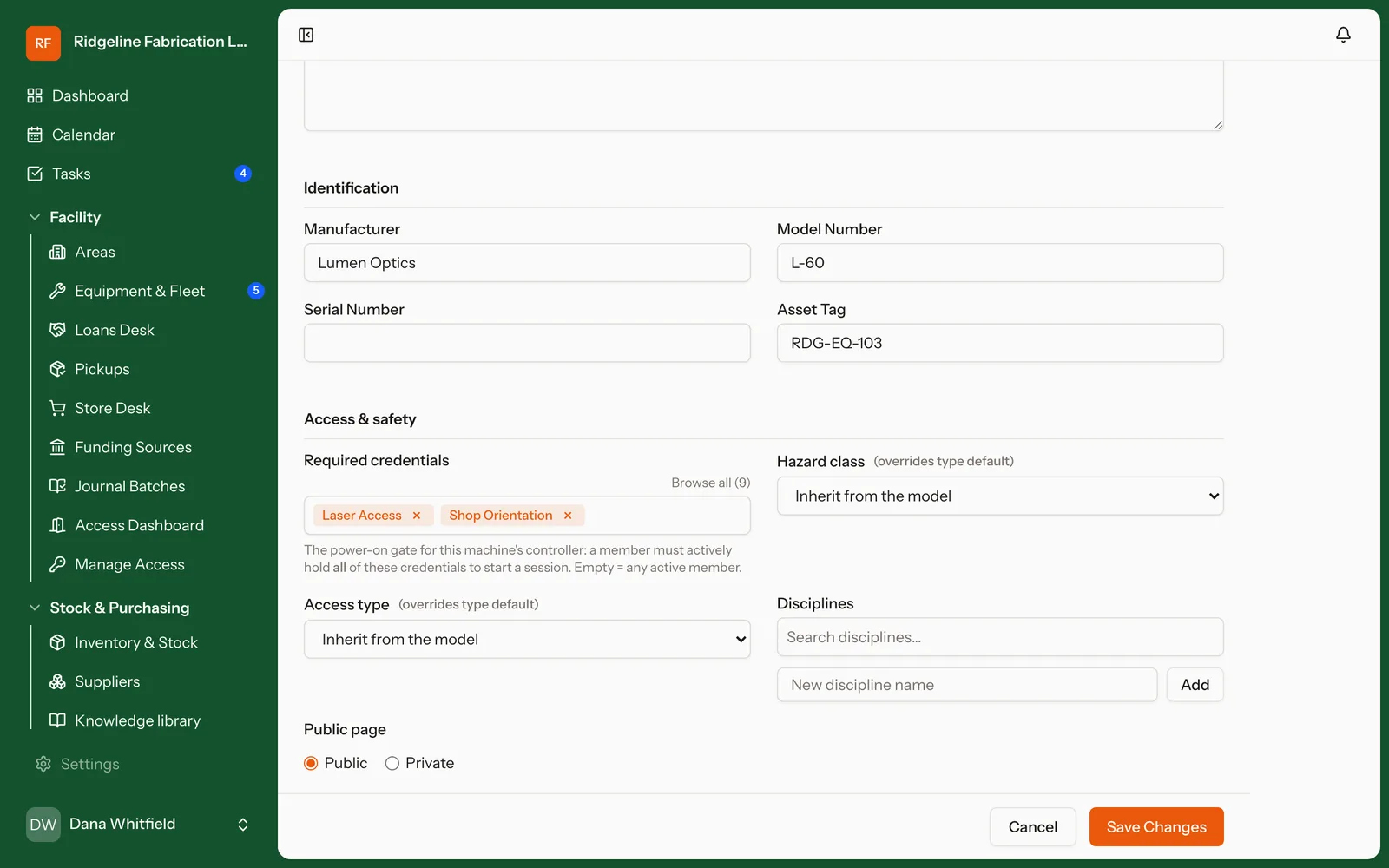
- Open the machine and click Edit.
- Under Required credentials, search for a credential and pick it. Each credential you pick this way is required.
- To accept another credential in place of one, click or… on its row and pick it. A member then needs only one credential from that row.
- Click Save Changes.
The line under the field reads back the rule, such as “Needs Laser Safety and Shop Orientation or Woodshop Basics”. With nothing picked, any active member may start the machine.
A member must meet the rule to start the machine, and to book it. This is set on each machine, not on the machine type. With MakerOps controllers installed, it’s enforced at the machine itself (see Machine access).
Members see the rule under Can I use this? on the machine’s page. Credentials they hold are ticked, and alternatives are listed under Any one of:.
Duplicate a machine
You can make up to 50 numbered copies of a machine, so a row of identical machines is one form, not fifty.
- Open the machine, open the menu beside Edit and click Duplicate….
- Under How many copies?, enter a number from 1 to 50. They’ll be named shows the names the first copies get.
- Click Create … copies. A message names the copies it created.
Copies take the original’s name without its number and add one, so “Table Saw” gets “Table Saw #2”, “Table Saw #3” and so on. Names already in use are skipped.
Each copy gets the original’s machine type or model, area and location detail, make and model, status, public visibility, description, picture, hazard class, Required credentials, disciplines, assigned group and responsible person; its access, session, condition check, running-current and buddy settings; and its booking and loan rules. It also gets its machine type’s or model’s maintenance schedules, as a new machine would. Serial number and asset tag stay blank. The original’s controller, its This machine only schedules, its updates and its history aren’t copied.
Duplicate… shows to people with Add equipment.
Service status
A machine’s Status is one of:
| Status | Meaning |
|---|---|
| Operational / Available | In service. Shown as “Operational” on public pages. |
| Offline | Down for maintenance. Shown as “Down for maintenance” on public pages. The controller shows DOWN FOR MAINTENANCE. |
| Retired / Archived | Out of service for good. Removed from public pages. The controller shows OUT OF SERVICE. |
Change it from the machine’s Edit form and click Save Changes (needs Edit equipment). In the app, people with Edit equipment can tap Mark down for maintenance on the machine’s Overview tab when something breaks mid-shift, and Put back in service afterwards. Marking a machine down ends any running session. With a controller installed, a machine that isn’t in service hides its QR code and refuses every start.
Maintenance schedules
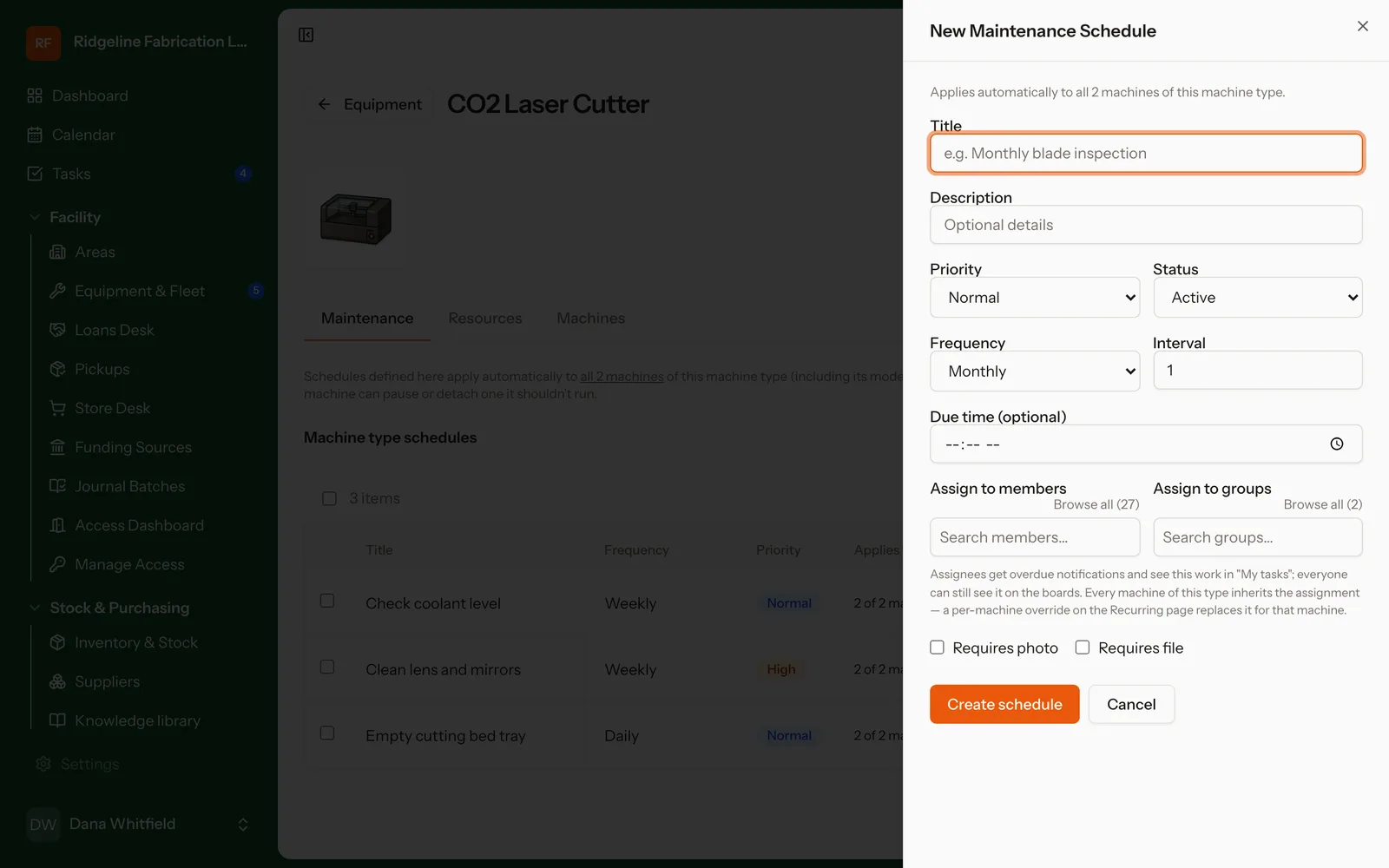
Schedules set on a machine type or model apply to every machine in it. Edits sync to those machines, and a machine added later picks them up.
- Open the machine type or model from Settings › Machine Types. Its Maintenance tab opens first.
- Click Add Schedule.
- Enter a Title, then choose a Frequency (Daily, Weekly, Monthly, Quarterly, Yearly or Custom (days)) and the Interval.
- Optionally set a Priority and a due time, pick people under Assign to members and Assign to groups, and tick Requires photo or Requires file.
- Click Create schedule. The schedule applies to every machine of that type or model at once.
Adding, editing or deleting a schedule needs Manage maintenance templates, on the web and in the app. Assignees get overdue notifications and see the work in their tasks. Schedules are calendar-based; MakerOps doesn’t schedule by hours of use. Completed work builds up on each machine’s Maintenance and History tabs, so “when did we last grease the ways?” has an answer.
Change maintenance on one machine
On the machine’s Maintenance tab, Maintenance Schedules lists each schedule and where it comes from: a machine type or model, or This machine only.
- Pause stops new tasks on this machine, and Resume starts them again.
- Detach keeps the schedule on this machine, but later changes to the machine type or model no longer reach it.
- Add schedule for this machine opens New Recurring Template for this machine alone. Under Scheduling mode, After completion makes the next task due one interval after the previous one is completed, and creates none while it is still open. Fixed schedule keeps to the calendar.
- Add one-time task creates a single task on the machine. Tick Repeat on it to make it repeat (see Make a task repeat).
Pause, Resume and Detach need Manage recurring tasks. Add schedule for this machine needs Manage recurring tasks, and Add one-time task needs Create tasks.
To make a task repeat and set when it ends, see Make a task repeat.
Work through due maintenance
Open Facility › Equipment & Fleet and click Fleet Maintenance (needs View fleet maintenance).
- Machines lists due work under Overdue, Due today and This week, then every fleet with the health of each machine. Click Complete on a task, or Complete all under Overdue.
- Schedules groups open tasks by schedule across machines. Filter by Equipment Type or Area, tick the tasks, and click Complete … selected.
Completing needs Complete tasks. Completing several at once skips any task that requires a photo or file; open each one to add it.
In the app, a machine’s Maintenance tab has Log maintenance and the open tasks to complete. For a whole fleet, use a fleet sweep.
Sweep a fleet in the app
A fleet sweep lists the open maintenance on every machine of one machine type or model, so you can walk the row of machines and complete the work in one pass.
- In the app, tap Maintenance on Home or on Equipment. Fleet sweep heads the screen, with a row for each fleet that has open maintenance. You can also tap … fleet sweep on a machine’s Maintenance tab.
- Tap a fleet. Each open maintenance task, such as “Grease Z-axis rails”, is a heading with the machines that have it open under it.
- Tick each machine as you finish its task. You can tick machines under several tasks.
- Tap Complete … items, enter a note if you want one (it goes on every task), and tap Complete.
To finish one task on every machine at once, tap Complete all on its heading and confirm.
To describe the work instead of ticking it, tap Dictate what you did, type or dictate what you did, and tap Continue. MakerOps matches your words to the fleet’s open tasks and ticks the matches it is at least 70% sure of. Check the ticks, the Summary and the Kind (routine, repair or observation), then tap Complete on … machines. The summary is posted on each machine’s Updates as a maintenance log, and the ticked tasks are completed.
Needs View tasks to open Maintenance, and View equipment, Complete tasks and Bulk complete equipment tasks for the sweep. With Bulk complete equipment tasks you can complete any machine’s maintenance, whether or not it is assigned to you. A sweep skips tasks that require a photo or file; open each one to add it. A machine type’s sweep covers the machines set to that type, and each model has its own.
Problem reports
Members and staff can click Report a problem on a machine’s page. It’s also on the machine’s public catalog page, reached from the QR label, when they’re signed in, and in the app. They describe what’s wrong and can add a photo.
A report:
- creates a high-priority task, “Reported problem: machine name”
- posts on the machine’s Updates thread, which lists open reports until their task is done
- notifies everyone who can edit equipment or manage maintenance
- tells the reporter when the task is done
A report does not change the machine’s status. Taking it down is a staff decision: set it to Offline yourself if it shouldn’t be used. Reporting needs the Report a problem with a machine permission, which doesn’t use a seat.
With a controller, a machine can also ask its user at the end of each session whether it worked properly; a “no” files a problem report. To turn it on, open Facility › Controllers, click Controller settings on its controller, open Sessions and tick Ask “is the machine working properly?”. Needs Manage controllers.
QR labels
Each machine can carry a QR label. Scanning it opens the machine in the MakerOps app if it’s installed, and the machine’s public page otherwise, where people can see its status or report a problem.
- One machine: click the printer icon on its row.
- Several: tick the rows and click Print Labels.
Pick a Template and click Print. This opens the label as a PDF with your browser’s print dialog: choose your label printer and keep scaling at 100%. You can also download the labels as a PNG, PDF or ZIP. Design your own templates in Settings › Label Templates.
Note: A machine whose Public page is Private, or that is retired or archived, has no public page. Its label opens only in the app.
Usage history
With controllers installed, every session is recorded on the machine’s Sessions tab: who, when, how long, how it ended and any condition answer. View full history opens the full list. The tab needs View controllers. Usage rolls up into Reports.